Ultra-low latency
A short path from input to action. Fast decoding keeps you in the game.
Immediate response
 NIGHTJAR
Stream your PC to Android.
Your games, your desktop, your controls. Nightjar connects to any Moonlight-compatible host and brings them all to your screen.
Android 5.0+ · Free and open source
Your PC’s streaming host runs your games and apps.
Video and audio travel to your Android device.
Your input goes straight back to your PC.
From your first input to the next frame. Built for a stream that feels immediate.
A short path from input to action. Fast decoding keeps you in the game.
Immediate response
AV1, HEVC and H.264. Bring contrast and depth to your stream with 10-bit HDR over AV1 and HEVC.
AV1 · HEVC · H.264
Variable refresh rate (VRR) pacing follows the game. Nightjar presents each frame as it arrives.
VRR pacing
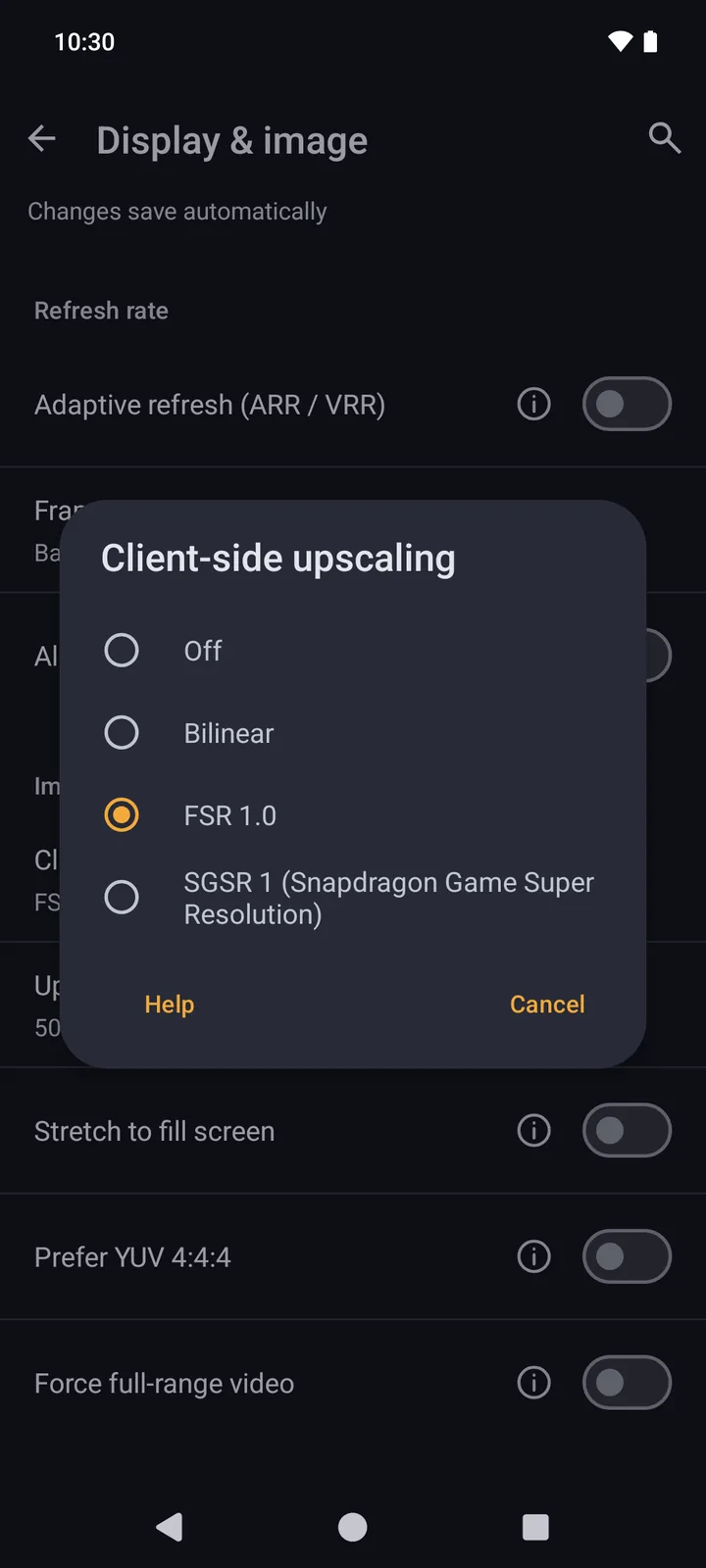
Client-side upscaling with FSR and Snapdragon GSR brings your stream up to size, right on Android.
FSR · Snapdragon GSR
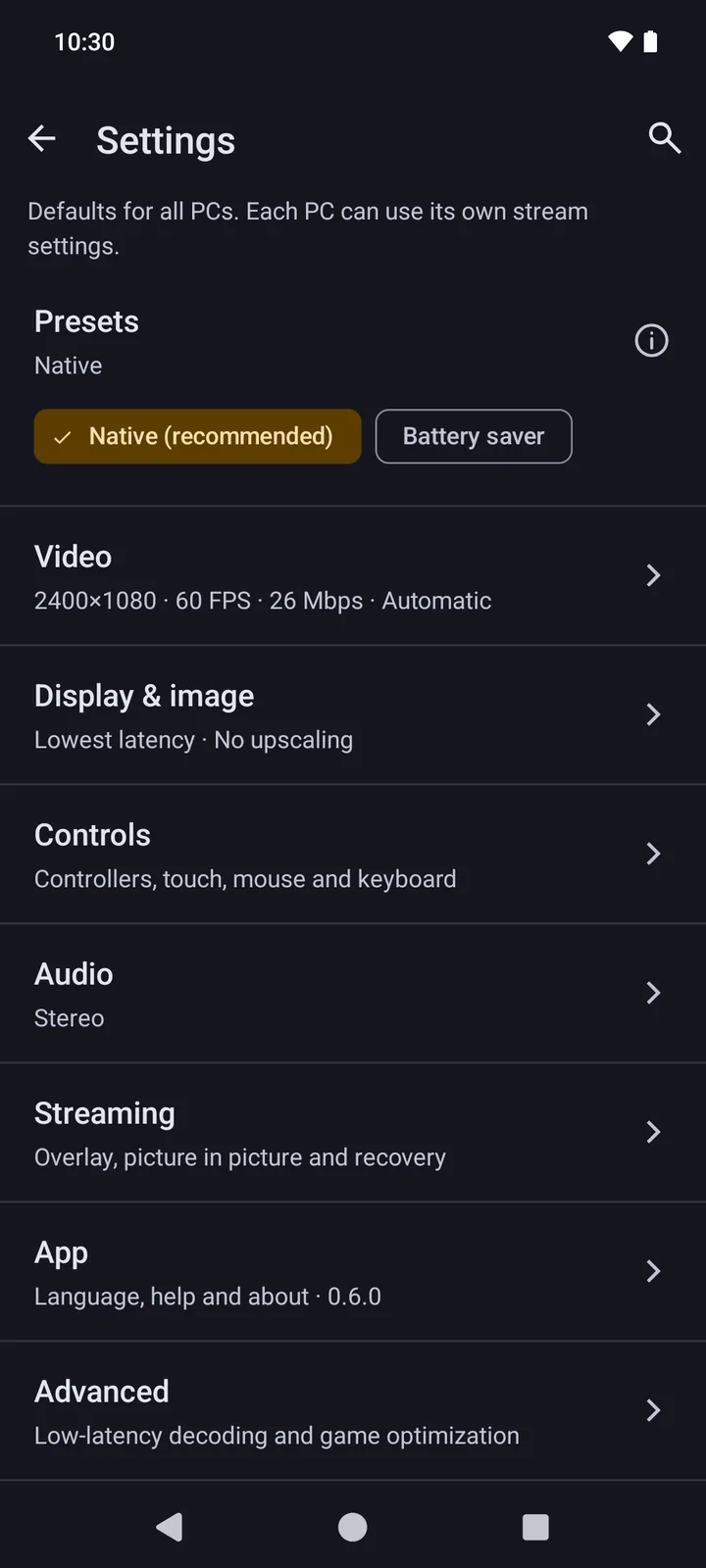
Pick up your controller. Reach for the touchscreen. Or keep your mouse and keyboard.
Connect USB and Bluetooth controllers. Remap buttons to fit the way you play.
Use direct touch, a natural trackpad or a cursor drawn on your phone. Build on-screen controls with sticks and triggers, or import them from Artemis.
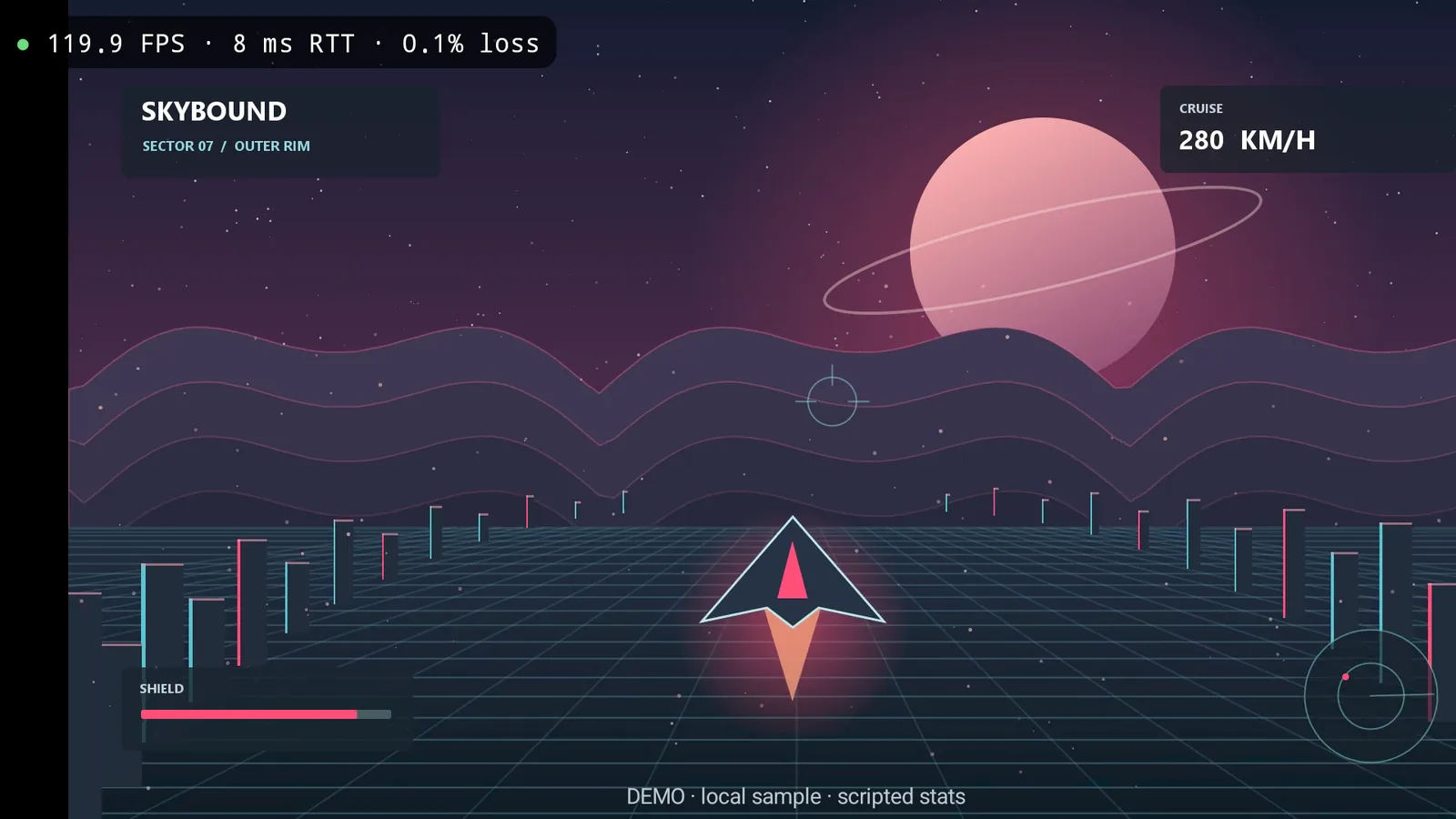
See FPS, latency and frame loss in the performance overlay. Open diagnostics and choose when to share a report.
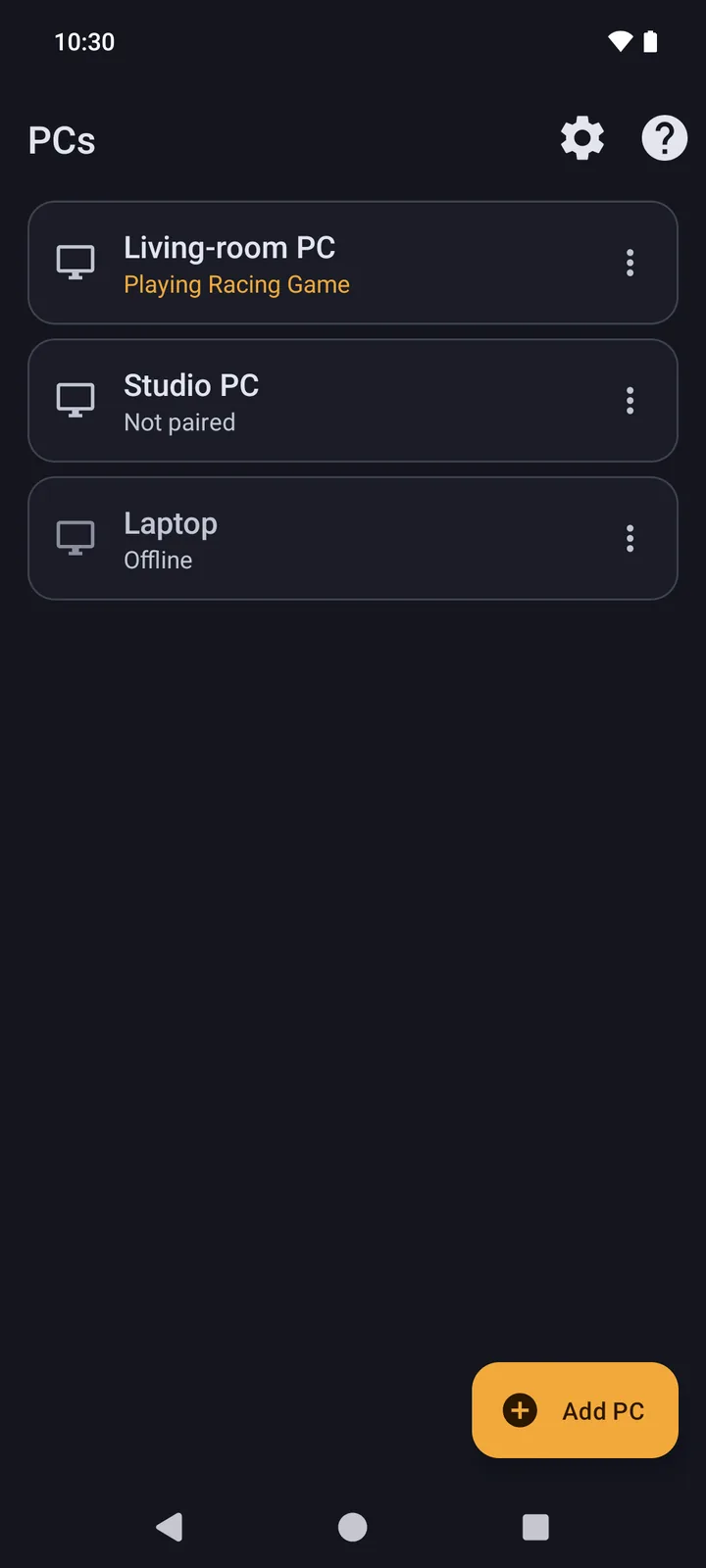
Local discovery finds your host. Wake-on-LAN brings your PC online for your next stream.
Video and audio to you. Your controls back to your PC.
One PC. One Android device. Any Moonlight-compatible host.
Get the APK from the latest release. Open it on Android and allow installation.
Start your PC’s streaming host, for example Apollo, Rubylight, Sunshine or Vibepollo. Connect your PC and Android device to the same network.
Select your PC in the app, or use “Add PC”. Enter the displayed PIN in your host’s settings or web UI. If your host has per-device permissions, grant app-list, stream, launch and input permissions.
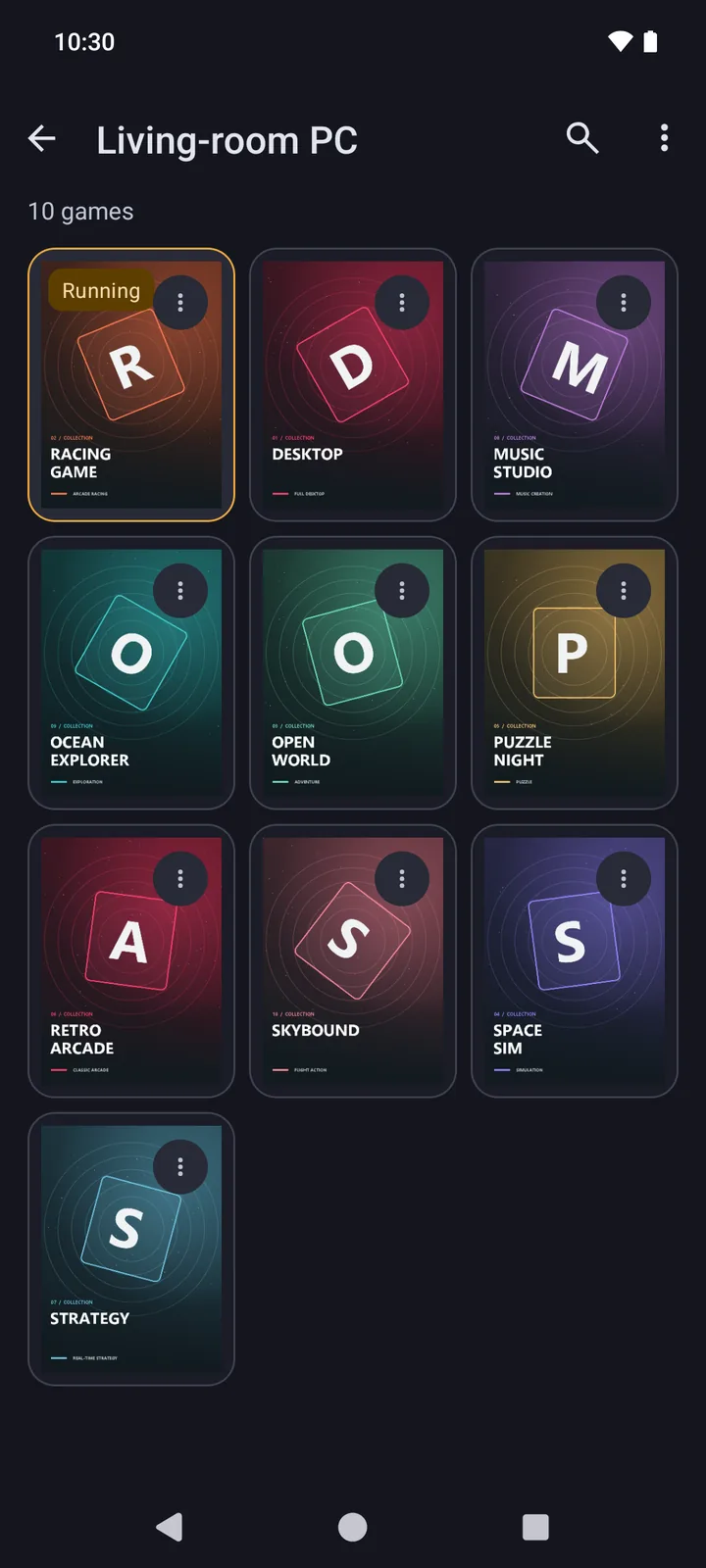
Choose a game or your desktop. Set your picture and controls, then start your stream.